The General section allows you to set a global Page Title for the entire website.
The post type Blog, Property, and Shop... (if available) sections let you configure a custom Page Title for both the listing and single pages of each content type. Settings in these sections will override those in the General section if applied.
- In Dashboard Admin, Navigate to: Appearance » Customize » Page Title » General
- These settings can be overridden by settings from Page Settings in the separate page.
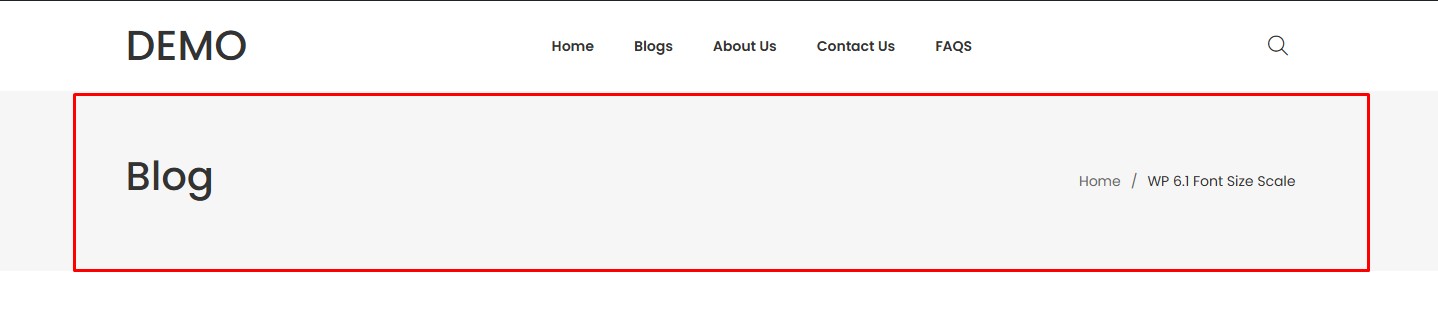
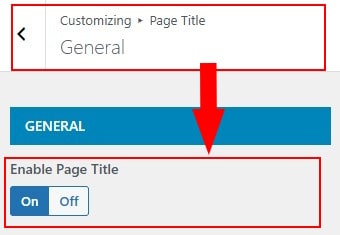
How to Enable the Page Title
- in General group then locate Enable Page Title.
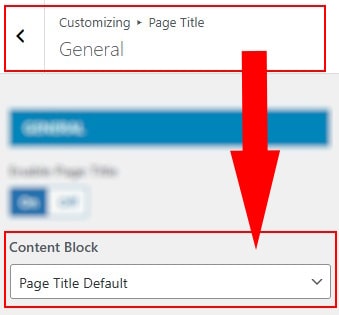
How to Use a Content Block as the Page Title
- Replace the default page title section with a custom content block. This gives you full control over layout, design, and dynamic elements.
- in General group then locate Content Block.
Tips:
How to Configuration for breadcrumbs
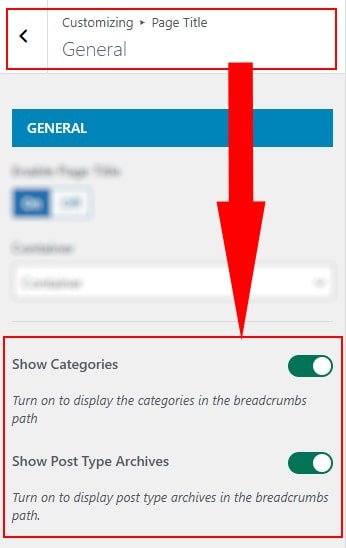
- Show Categories: Turn on to display the categories in the breadcrumbs path.
- Show Post Type Archives: Turn on to display post type archives in the breadcrumbs path.