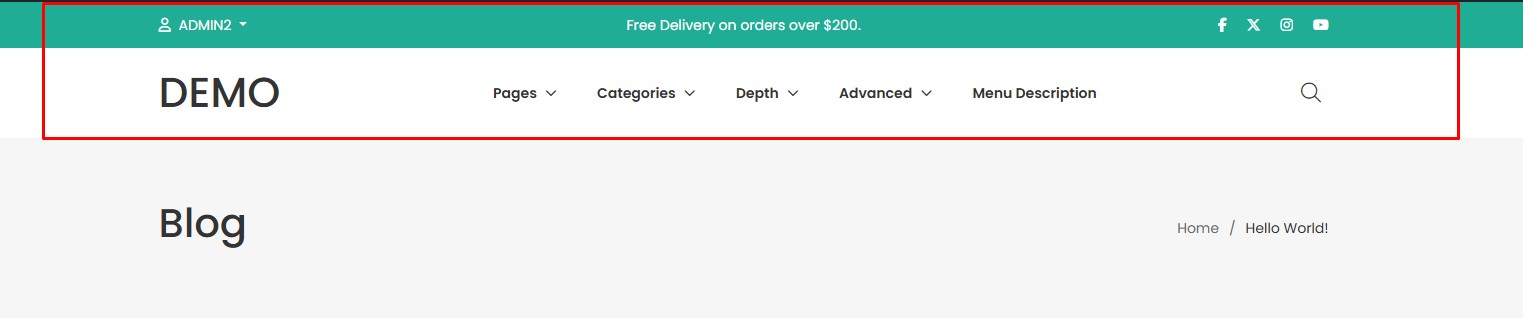
We provide built-in options to configure a global header for the entire website, as well as custom headers for each available post type.
The General section allows you to set a global header for the entire website.
The post type Blog, Property, and Shop... (if available) sections let you configure a custom header for both the listing and single pages of each content type. Settings in these sections will override those in the General section if applied.
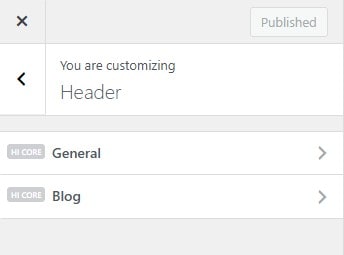
- In this article, we’ll guide you through configuring the global header in section General for the entire website. For specific post types, you can apply similar settings in their respective sections.
- In Dashboard Admin, Navigate to: Appearance » Customize » Header » General
- These settings can be overridden by settings from Page Settings in the separate page.
General (Header Desktop)
Guide to configuring the header for desktop view.
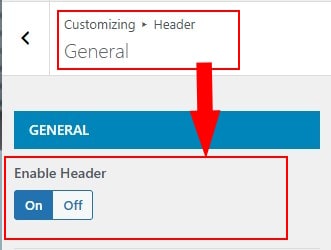
How to enable or hide header
- in General group then locate Enable Header.
How to configure layout header
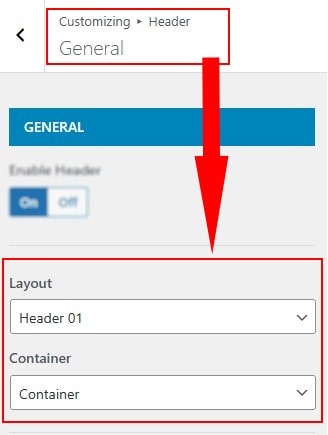
- Layout: Choose a layout for the header
- Container: Configure the header container
How to configure logos

- Logo: Choose from the gallery or upload a logo in the header
- Logo Sticky: Choose from the gallery or upload a logo in the header sticky
- Logo Max Width: Configure the maximum width for the logo
- Logo Sticky Max Width: Configure the maximum width for the logo sticky
How to configure Customize on header
- Allows you to display custom elements in each section position, enhancing functionality and flexibility of the header.

How to style menu on header

- Font Size Menu: Configure font size for menu
- Menu Item Spacing: Configure the spacing between menu items
How to Enable the Top Bar

- in General group then locate Enable Top Bar.
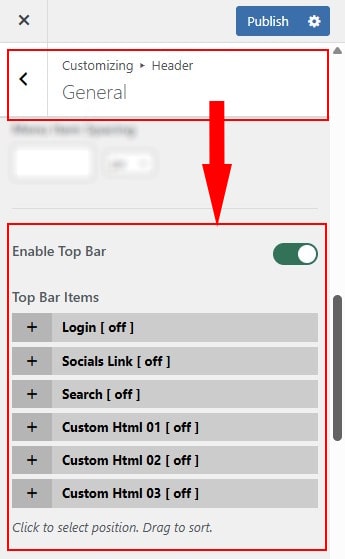
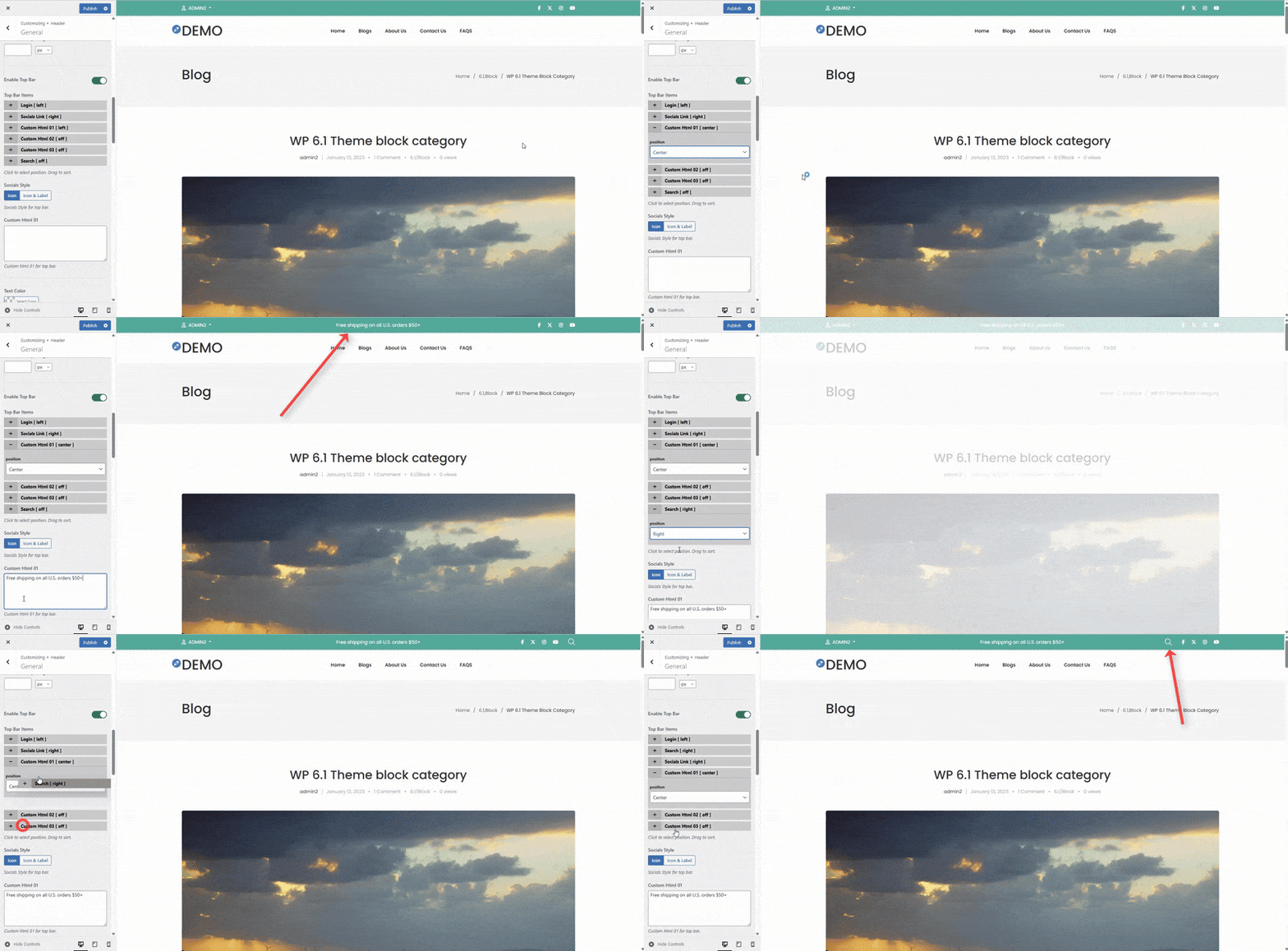
You can customize the position and drag to reorder each item on the top bar.
How to Configure the Header Color
- in General group then locate Style Color Group.
Customize your website's appearance by adjusting the header color to match your brand identity. Choose from preset color options or set a custom color using the color picker.

How to Enable Header Float

- in General group then locate Enable Header Float.
Enable the floating header to position it above the main content without taking up layout space. Ideal for modern layouts with full-width banners or transparent effects.
- You should style the background header as transparent, the text color of the header contrasts with the background color so that the header displays better

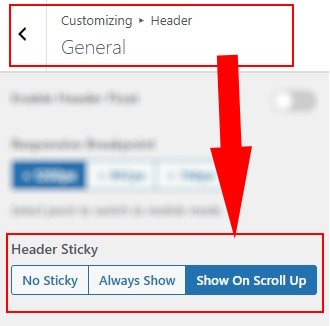
How to Enable Sticky Header
- in General group then locate Header Sticky.
Keep your header fixed at the top of the screen as users scroll down the page. This improves navigation by ensuring that menus and key actions stay visible at all times.
You can choose mode: Always Show, Show On Scroll Up or turn off Header Sticky
Header Mobile
Guide to configuring the header for mobile view.
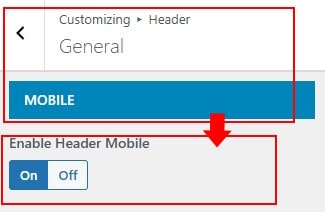
How to enable or hide header mobile
- in Mobile group then locate Enable Header Mobile.
How to configure layout header mobile
- in Mobile group then locate Layout.
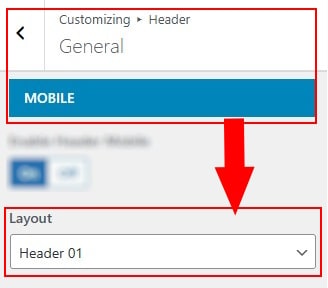
How to configure logos mobile
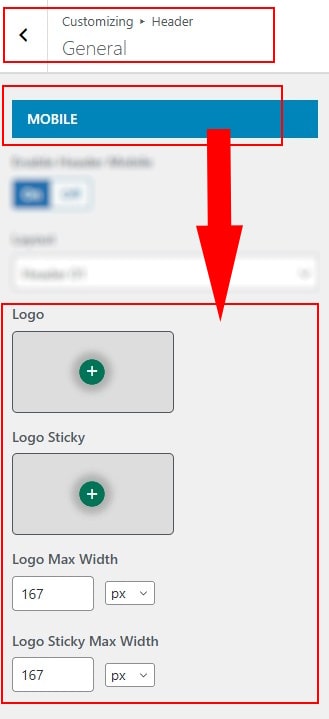
- Logo: Choose from the gallery or upload a logo in the header
- Logo Sticky: Choose from the gallery or upload a logo in the header sticky
- Logo Max Width: Configure the maximum width for the logo
- Logo Sticky Max Width: Configure the maximum width for the logo sticky
How to configure logos mobile
- in Mobile group then locate Style Color.
Customize your website's appearance by adjusting the header color to match your brand identity. Choose from preset color options or set a custom color using the color picker.

How to Enable Header Mobile Float
- in Mobile group then locate Enable Header Float.

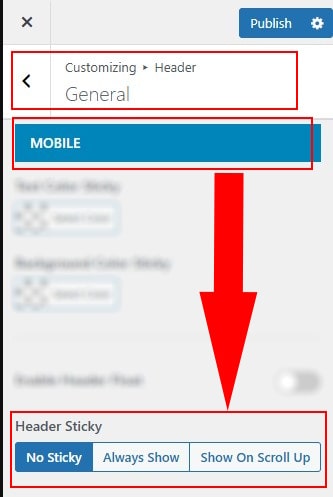
How to Enable Sticky Header Mobile
- in Mobile group then locate Header Sticky.
Keep your header fixed at the top of the screen as users scroll down the page. This improves navigation by ensuring that menus and key actions stay visible at all times.
You can choose mode: Always Show, Show On Scroll Up or turn off Header Sticky
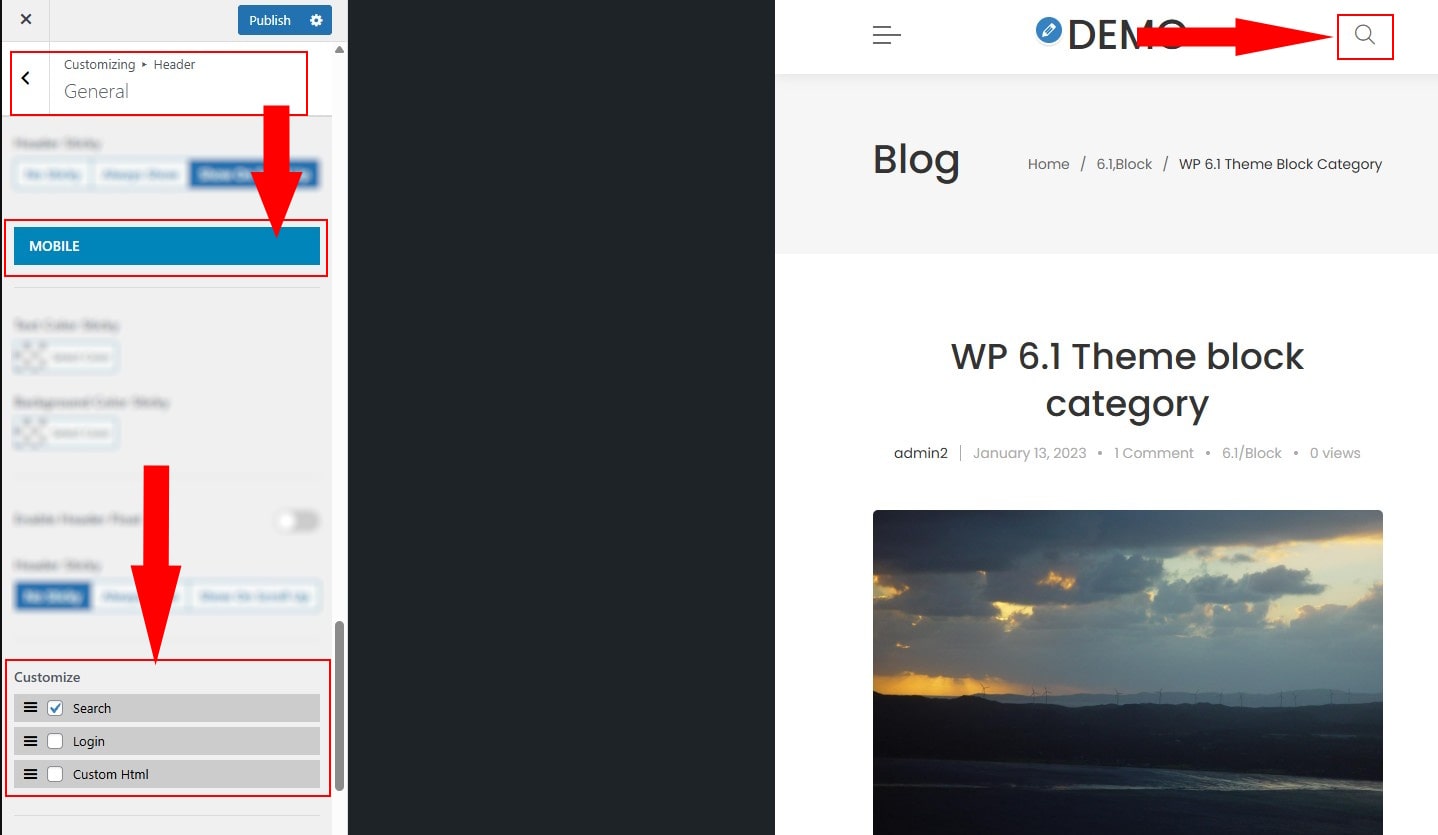
How to configure Customize on header mobile
- Allows you to display custom elements in each section position, enhancing functionality and flexibility of the header mobile.
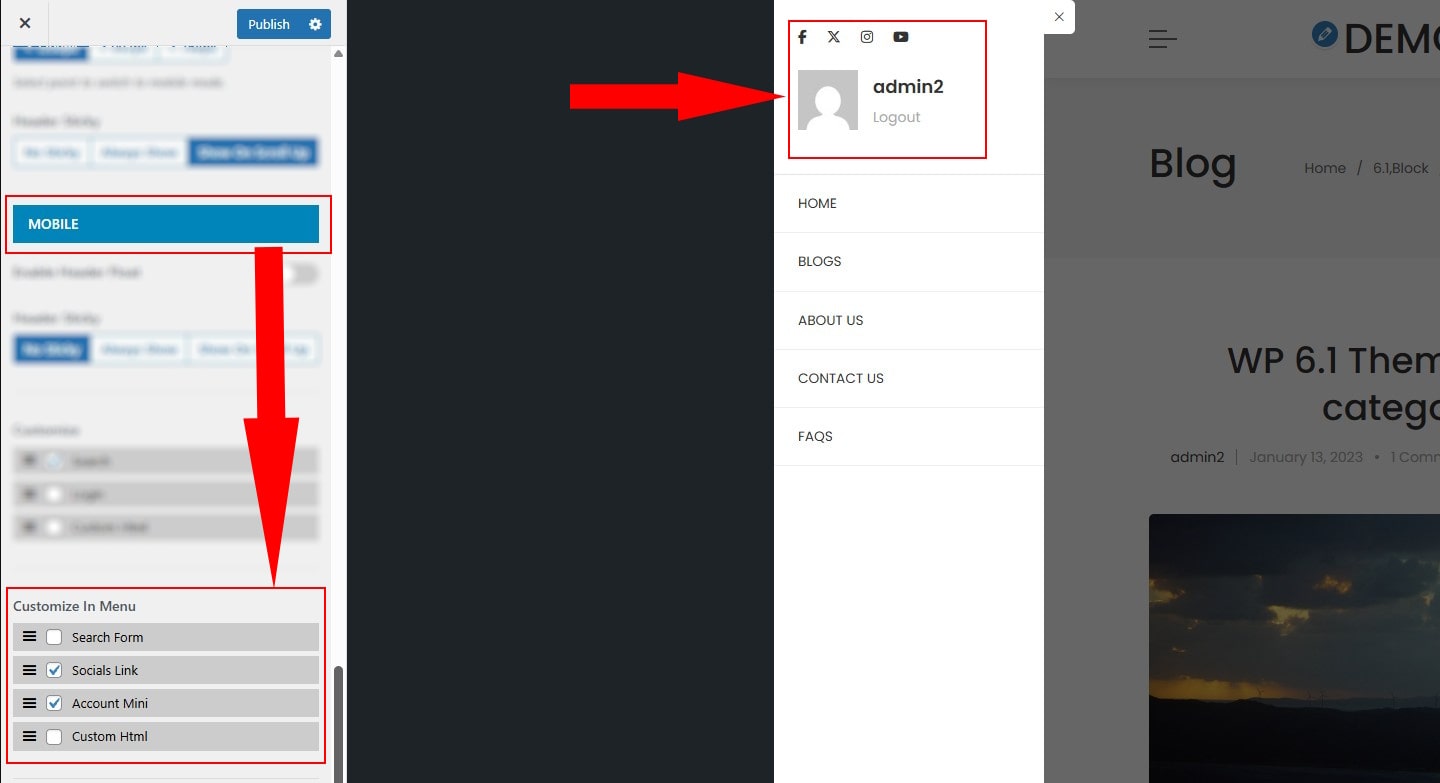
How to configure Customize on menu mobile
- Allows you to display custom elements in each section position, enhancing functionality and flexibility of the menu mobile.
How to Enable the Top Bar mobile
- in Mobile group then locate Enable Top Bar.
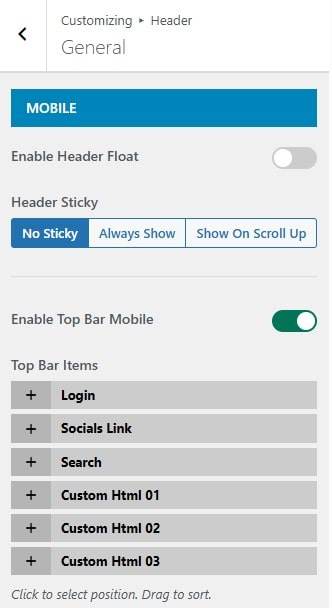
You can customize the position and drag to reorder each item on the top bar.